
NeonFox · “Wolf” · 3 layers
▲ 212▼ 31brought 48 voters

DESIGN SYSTEM
Use this guide before creating a screen. These examples render the same components used in the stencil studio.
#285b52#edf4f1#25332f#64716c#dce3df#f0f3f0Clear labels, quiet surfaces and a single green primary action. Sentence case, 14–16px body copy, 12px supporting labels. Controls have a 44px minimum touch target. Tertiary actions use green underlined links. Choices and tools use outlined buttons. Disabled sliders keep their thumb position and value. Slider labels and values sit directly below the track, with the 44px interaction area preserved.
Buttons: 12px radius. Drawers: 20px radius. Dividers: 1px. Slider track: 14px. Thumb: 30px.
Shared Button, Slider, Select, LayerPicker and LayerThumbnail components. LayerThumbnail opens the custom color field directly. Apply color commits the choice; Cancel keeps the current color. Layers uses Add layer and Replace image in one row without a Pro badge on Add layer. Layer rows and dropdowns share Base coat, Detail and Loose pieces roles. Text creation is hidden for now. Fixed repair sheets show Layer N and their source, with no threshold control. Cleanup warnings use both a pale red row and an icon, including in layer menus. LayerPicker, paper size and file format reuse ui/select/Select.vue. Use its white menu, sage selected row, keyboard navigation and Pro badges. Do not create a separate dropdown for each panel. Guest purchases and signed-in upgrades share UnlockDialog’s compact studio offer, plan choices and secondary links.
The in-chat studio for Claude and other MCP Apps hosts, built from this same component (mcp-app/StudioHost.vue bridges it to the host). Always the site theme with the real logo, whatever the host theme. Layers are listed in spray order, Explode fans them out with the same geometry as ExplodedLayerView (utils/layerFan.ts), sliders commit on release, and downloads over the free layer limit route to the editor. Ready states need a real render, so the guide shows the states that do not.

Stencil studio
Drop a photo to make a stencil
Portraits, pets and logos work best. JPG, PNG or WebP.
The connection consent component is deliberately limited to a verified app, the signed-in account and a connection check. It has no stencil or billing controls.
The homepage uses this shared component: four static cards from config/featureBenefits.ts, one column on phones, two from 640px, four from 1024px. Pro-only benefits carry the small Pro pill. No carousel, nothing hidden behind a timer.

Automatic bridges
Connect loose islands to the sheet with bridges, then check each layer before cutting.
See how bridges work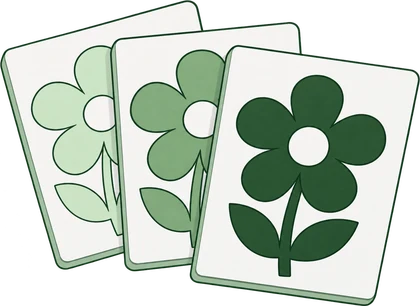
Layer previews
Preview the separate sheets and paint order so you can spot changes before using your material.
See the layer preview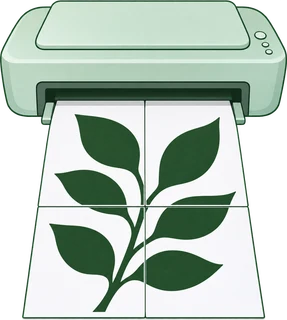
Tiled PDF printingPro
Split your design across A4 or Letter sheets and line them up into one larger stencil.
See how to print large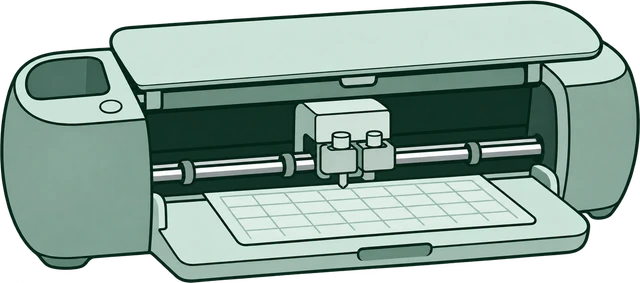
One-click Cricut exportPro
Every layer lands in Design Space pre-aligned. No tracing, no cleanup, no lining sheets up by hand.
See the cutting filesShowdownEntryCard is the one card for today's showdown entries on the homepage (compact: GOOD, BAD, then NEXT), the vote deck and the entry page (BAD left, GOOD right). It plays the stroke replay when the entry has a stroke file and shows the static share card otherwise, or while another replay is live. Pressed votes stay filled. Disabled covers a closed day. HomeShowdown and the vote deck popup are behind NUXT_PUBLIC_SHOWDOWN_ENABLED.
The homepage, gallery and saved projects use the existing BrandLogo, HeroDropzone, StencilCard, PricingBase, TheHeader and TheFooter. No separate marketing button or card system. Inspect their live pages to see the full layouts.




3 layers combine to create this stencil
Cards keep artwork visible before hydration. Gallery and My Stencils share this component, with their own existing actions. Loading, no results and failed requests use a short status plus a clear next action.
Blog posts use site-article for the column, site-page-heading for the title and site-prose for Markdown. The disclosure note, links and wide tables share the same tokens. Tables scroll sideways on phones.
We may earn a commission from qualifying purchases.
Low-pressure cans give crisp edges. Read how to stop bleed first.
Light coats beat one heavy coat.
| Paint | Pressure | Finish | Best for |
|---|---|---|---|
| Low-pressure acrylic | Low | Matt | Fine detail and indoor walls |
| High-pressure enamel | High | Gloss | Large outdoor fills |
LandingPageTemplate (83 SEO pages) and PrintableStencilHub are built from these shared site components and the site.css primitives the homepage uses: site-section, site-samples, site-steps, site-card, site-tags and PricingBase. Do not add page-level colors or gradients. Highlight a headline word with site-accent.
Real examples
SiteSectionHeading: optional eyebrow, title, intro and a trailing link.
Free multi-layer stencil maker
site-card with site-icon-tile for feature lists.
We couldn’t load the designs. Please try again.
Each opened question sends faq_clicked with the page key passed in.
No. It uses native details and summary.
Tools sit beside the inspector on desktop. On mobile, the same controls open in a bottom drawer. Changing panels fades the old controls out before the next controls appear.
Keep every threshold visible. Adjust reuses the same threshold control. Brightness, contrast, smoothing and speckle controls are removed from this editor. Right-click and the options button open the same compact menu.
ui/ButtonGroup with fill and per-option Pro badges. Counts above 3 stay selectable; the export gate enforces Pro.
Height follows the image. Drag to preview the sheets you need.
190 × 266 mm1 page per layer · 3 cutting sheets
Advanced repair tools share one bordered disclosure. Canvas Undo is the only undo action in the editor. Do not scatter Adjust holes and manual bridge editing into separate rows outside this group.
No loose pieces detected.
Adjust how much detail appears on this layer.
Smooths rough edges before you repair or export this layer.
New uploads show the selected A4 or Letter paper edge and printable margin immediately. Fit the artwork without stretching it. Reset uses the same one-sheet size. Reopened custom sizes stay unchanged.
Loose pieces can fall out when cutting. Each warning opens the selected layer in Clean up, where every repair is previewed before it is applied. Bridge size stays with the repair choices. A clean layer has no warning. Downloads use one short message and a single horizontally scrolling row of the same layer shortcuts. During upload, keep the image and a plain-language status visible.
Repair controls respond during the reveal. Bridge planning runs in a background worker; Fill, New layer and Close stay available. Preparing and retry states belong to the affected choice only.
Real cached Explore 3 names, shown as an example. This guide cannot operate a machine. Pressure numbers and private identifiers stay in the local helper.
Preview and connection are available before payment. Sending a job checks membership or this stencil’s unlock. Free users see the existing paid/account offer; signed-in users see upgrade options. Connection availability is separate from Pro access. The dialog shares preparation and next-action logic across editors. These are its actual preview, material controls and feedback components. This guide cannot connect to a machine. The machine illustration describes the Explore 3 setup; it does not claim hardware detection. Close minimizes an active job to its status bar, preserving polling and completion.
Connection status and its action share one persistent footer. Connect remains available while preparing the artwork. These examples do not operate a machine.
Cut extends outside the limit
The selected layer extends past the sheet edge. Fit to paper scales the stencil and rebuilds its preview, even when no machine is connected.
Choose the layer you want to cut. Choose a layer and sheet size, then use Fit to paper if the artwork is too large. Fit scales all layers together and keeps their proportions. If they already fit, the size stays the same.
Connect first, then cut. A blue power light confirms Bluetooth, not that a mat or blade is ready. Choose Cut layer, confirm the paper and blade setup, then Send to Cricut. Wait for the Load and Go instructions before pressing the machine’s buttons.
Finished checking? Disconnect Cricut ends the Bluetooth connection. Close (×) returns to the editor. During a job it minimizes the dialog and keeps the job running.
Reference only, not live machine status. These prompts apply during an actual cutting job.
Choose the layer you want to cut. Choose a layer and sheet size, then use Fit to paper if the artwork is too large. Fit scales all layers together and keeps their proportions. If they already fit, the size stays the same.
Connect first, then cut. A blue power light confirms Bluetooth, not that a mat or blade is ready. Choose Cut layer, confirm the paper and blade setup, then Send to Cricut. Wait for the Load and Go instructions before pressing the machine’s buttons.
Finished checking? Disconnect Cricut ends the Bluetooth connection. Close (×) returns to the editor. During a job it minimizes the dialog and keeps the job running.
Reference only, not live machine status. These prompts apply during an actual cutting job.
Explore 3 on macOS only. The helper requires the verified Cricut driver v6.12.13. Other driver versions need verification. The latest helper supports selected-layer cuts on A4 plain paper and a 12 × 12 inch mat. Other setups are preview only.
Every dialog that teleports over the page uses one shell from assets/css/site.css: .site-scrim and .site-dialog, a handle and bottom-sheet layout under 640px, a centred 440px card above it (520px with .site-dialog--wide). Primary and secondary actions use the shared Button. Tertiary actions use .site-dialog-link. Choice rows use .site-option with aria-pressed, fields use .site-field, progress uses .site-progress. Retired on 3 November 2026: StencilFixDialog, ProjectViewDialog, PrintOptionsDialog and UiDialogLayout, which nothing mounted.
AnalyticsConsent is the sheet behind the footer’s Cookie settings link. It is a studio-dialog panel (20px radius, white, one line) that docks to the bottom edge on phones and centres from 640px. Choices are native checkboxes styled as studio-switch, so assistive tech and the consent tests still see a checkbox. Both start on; Turn off optional tracking is the outline action and Save choices the primary.
GoogleAd renders an AdSense unit for free users and hides for Pro. Until a creative fills, and on a 12s/8s rotation after, it shows our own Advertise here pitch: ink and green lockup chips, one line of copy, live reach numbers when available, the weekly price and a primary button that opens the three-step enquiry (name, email, phone) inside the card. Card and banner carry the white surface and 16px radius; inline is transparent for articles. Remove ads and Go Pro sit in the footer of every variant. The Wall re-skins the same component dark for its mounted boards.
Click Advertise here on any example to walk the stepper, sending and success states. Entrances are opacity only; the check mark draws once.
Artists, Compare, Done-for-you, the Free stencil pack, Decorative wall stencils, the Multi-layer page, the Marketplace and the Seller pages were moved off their dark roots on 3 November 2026. They build on the site.css primitives above plus these: site-page-hero for a centred intro, site-notice for confirmations and errors, site-pill and site-rank for small labels, site-sample with site-mosaic and site-sample-body for artwork cards, site-stats--3 and site-table for account pages, and site-dropzone, site-option-grid and site-star-row for forms. Rating stars use the accent, never yellow. The soft ShareButton is the site-share-trigger outline control; its brut variant stays dark for The Wall only.
Check your inbox for the confirmation. It has your turnaround time.
2 reviews
Cut clean on the first try.
Before/After, Gallery sort and the studio layer count (fill, Pro badges) reuse ui/ButtonGroup.vue. Inline repair actions remain visible while the choices scroll. Source: assets/css/studio.css. Components: ui/button, ui/slider, ui/select, editor/LayerPicker, editor/EditorTabBar, editor/Inspector, editor/EditorHeader, editor/LayerRepairIndicator, HeroDropzone, AppSpinner, AuthPanel, UnlockDialog, designer/LayerThumbnail, site/SiteSectionHeading, site/SiteFaq and site/SitePromoBanner. Public checkout from PricingBase goes through usePlanCheckout.
Retired: the separate dark guide, sale stickers, the oversized footer and duplicate homepage showcases. Older guide links redirect here.